Image Core
The Image Core component allows authors to add an image to their page, as well as define its alternate text and other properties. The component will automatically load the correct width to display depending on the size of the browser window. As the window is resized, the Image Core component dynamically loads the correct image size.
On This Page:
Usage
The Image Core component is used to add an image to the page. The component offers the ability to add an image asset with a simple drag-and-drop from the Asset Browser.
Adding an Image to the DAM
In order to add an image to an Image Core component, the image must first be uploaded to the DAM so that it is accessible in the Asset Browser.
Follow the below instructions to upload an image file to the DAM.
Asset Browser

Use the Asset Browser to locate images that are saved in the DAM. When working with an Image Core component, you are able to drag-and-drop an image from the Asset Browser into the component.
To access the Asset Browser, select the Toggle Side Panel option at the top left of the AEM window. Once the side panel appears, select Assets from the left side.
To locate an image, you can either:
- Type the name of the image in the Filter field, then press Enter.
- Type the path of the image in the Enter Path field, then press Enter.
- Select the checkmark next to the Enter Path field to search for the image.
Image results will appear when you scroll to the bottom of the Asset Browser.
Configure Dialog

To add or edit an image in the component, select the Configure dialog.
Tab: Asset
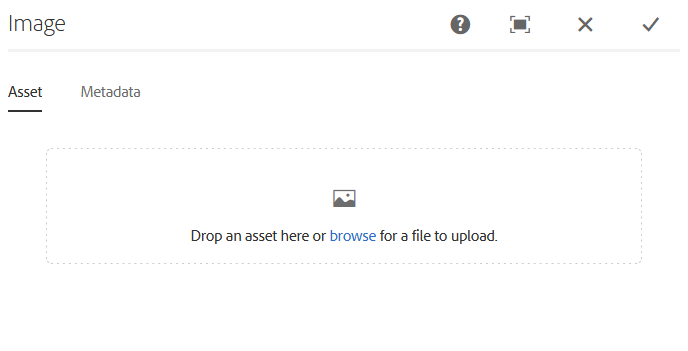
The Asset tab is where you select the image to appear in the component.
You are able to select an image by searching for it in the Asset Browser, and then dragging and dropping the image into the component.
By selecting Browse, you are able to select an image saved on your local computer. As a best practice, the images you plan on using should always be saved to the DAM and selected via the Asset Browser.

Once an image has been selected, three new options will appear.
Selecting the Edit option will allow you to change the image's properties.
Selecting the Clear option will remove the image from the component.
Selecting the Pick option will allow you to select a different image from the DAM.
Tab: Metadata

The Metadata tab offers a veriety of options, including those for accessibility.
The Image is decorative option allows you to indicate that the image adds no value to the page, and thus can be ignored by assistive technology such as screen readers.
The Get alternative text from DAM option allows you to automatically pull alt text from the image's properties. When unchecked, the Alternate Text field becomes editable. Alt Text is a written description of the image that conveys its meaning and context.
The Get caption from DAM option allows you to automatically pull caption text from the image's properties. When unchecked, the Caption field becomes editable. Captions appears below the image and provides additional information about the image. When the Display caption as pop-up option is checked, the caption will appear when you hover over the image, instead of below the image.
The Link field allows you to add a hyperlink to the image, which the user can navigate to when they select the image. By selecting the checkmark next to this field, you are able to easily link an AEM page to the image.

The ID field allows you to control the unique identifier of the image in the HTML layer. If left blank, a unique ID is automatically generated and can be found by inspecting the HTML code of the page.
Changing the ID can have an impact on CSS, JS, and Data Layer tracking. If the ID is changed, it is the responsibility of the author to ensure that the ID is unique.
It is recommended the ID field be left blank.
Example
View on public site:
