Data Entry User’s Guide for Android
Data Entry User’s Guide for Android
The CSEntry for Android application is designed to be straightforward to use, with features and options that interviewers can easily control.
Entry Applications Screen
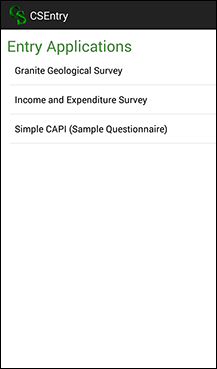
Upon opening CSEntry, all data entry applications on the device are displayed. Click on an application to open it. If only one application is on the device, it will open automatically.
Case Listing Screen
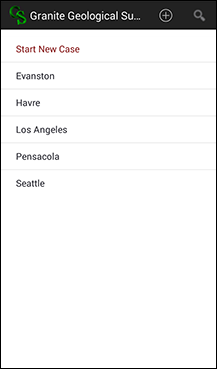
The case listing displays all cases that have already been added to the data file. Clicking on a case will open it for modification. Clicking on "Start New Case," or the icon of a cross in a circle, will add a new case. To delete a case, hard-press on the case until a deletion menu appears. The menu on this screen has options to sort the cases alphabetically, or to display only incomplete cases.
Screen Elements
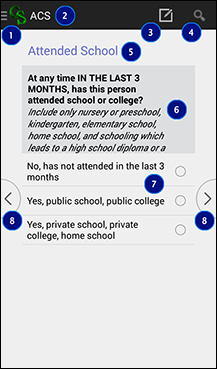
This illustration showcases the features of the data entry screen.
- Clicking on the CS icon brings up the case tree.
- This is the name of the survey.
- Clicking on the pencil and paper icon brings up a screen to type a field-specific note.
- Clicking on the search icon and typing in a query allows you to filter the response listing.
- The field label is a short description of the field that you are currently entering.
- This is the question text for the field that you are currently entering. This will be more descriptive than the field label.
- These are the response labels. CSEntry can display text boxes, radio buttons, checkboxes, or date selectors.
- These are the left and right navigation buttons, which correspond to moving backwards or forwards in the data entry application. Clicking on the Android back button will close out of adding or modifying a case.
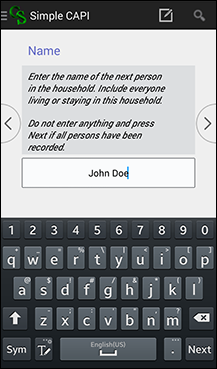
User Inputs: Text Box
To enter data in a text box field, simply type the response using the keyboard. If a keyboard does not appear automatically, click on the field and a keyboard will appear. If your keyboard has a Next key, you can click on it to move to the next field.
User Inputs: Radio Buttons
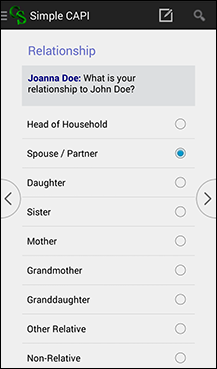
When presented with a list of radio buttons, you must select one, and only one, response. Click on the response label, or the corresponding radio button, to make your selection.
User Inputs: Check Boxes
When shown checkboxes, you can select none, one, or multiple responses. Click on the response label, or the corresponding checkbox, to make a selection. Once you are finished making all selections, you can proceed to the next field.

User Inputs: Search Box
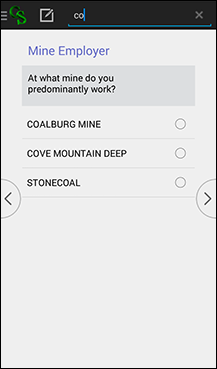
After clicking on the search icon, a space will appear where you can type a search query. The list of responses will automatically filter based on your search query. The full text of each response is searched, not necessarily starting from the first letter of the response.
User Inputs: Note Box
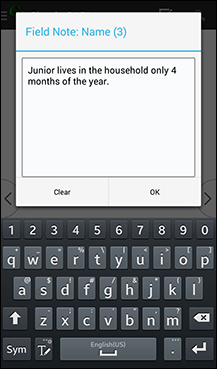
After clicking on the pencil and paper icon, you will have the opportunity to type a field-specific note. If you do not want to add a new note, you can press the Android back button to cancel.
Case Tree
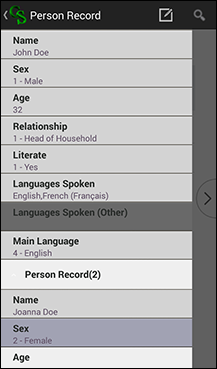
Clicking on the CS icon brings up the case tree. The case tree displays all fields that have been entered in the data entry application, showing the field label as well as the field response. If you click on a field, you will be taken to that field. This allows you to quickly move from one part of the questionnaire to another. Once the case tree is shown, clicking on the CS icon again will take you up the hierarchy of the data entry application. For example, you might go from seeing details about a person to seeing details about the household. To insert or delete a repeating occurrence, hard-press on the occurrence label until you are presented with a menu that allows for insertions and deletions. You can dismiss the case tree by using the Android back button.
Sync
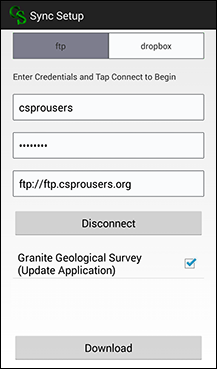
From the Entry Applications screen, clicking "Find Apps," one of the menu options, brings you to a screen where you can download data entry applications from a Dropbox account or an FTP server. For specific instructions on how to use this screen, talk with your survey data processing manager.