Can I download tables?
You can download tables on data.census.gov in three formats: Excel, CSV, and ZIP.
- Use Excel or CSV downloads to get output that looks similar to the table display
- Use ZIP downloads to get flat, machine-readable files that include GEOIDs
How to Download a Table
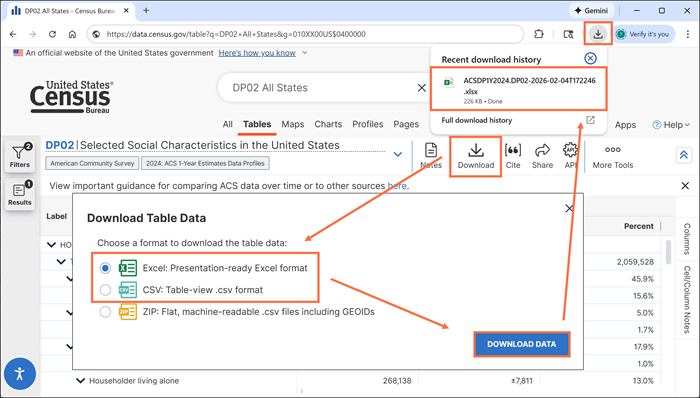
- Click the Download button at the top of the table.
- In the pop-up window, select one of the radio buttons for Excel/CSV/ZIP and click the Download Data button.
- If you selected Excel or CSV and are using the preferred browser (Google Chrome), the file appears within the download icon in the upper right.
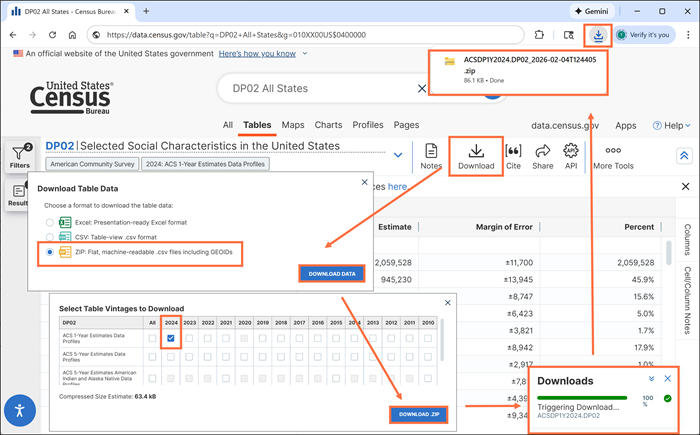
- If you selected ZIP, the site directs you to complete additional prompts in another pop-up window:
- Select the dataset(s) and year(s) you want to download. By default, the option that matches the table view is automatically selected. You can change or add to the selection.
- Click the Download ZIP button. This will trigger the download, which is indicated by a progress bar in the lower right.
- Once the progress has reached 100%, the ZIP file appears with your downloads.
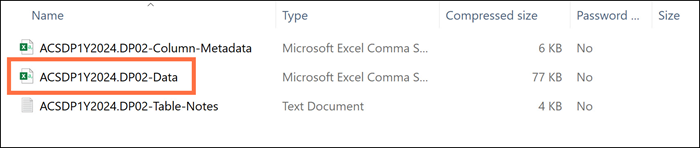
- After opening the ZIP file, open the file that ends in -Data
Excel and CSV Downloads
In both Excel and CSV downloads, customizations you made on the table display will carry over into your downloaded file including:
- Hidden columns
- Removed margin of error
- Custom filters you have applied (see the FAQ, “How can I create a custom filter?,” for more on this).
- Excel downloads contain two worksheets:
- “Information” Worksheet: Provides the fully qualified table name, universe statement, source details, citation, and table notes. It also features the U.S. Census Bureau logo and a shareable data.census.gov link for your selected table and geographies.
- “Data” Worksheet: Provides the table data and labels in a format that is optimized for easy viewing and printing.
In comparison to the Excel file, the CSV download is a simpler format that provides the data and labels without any additional qualifying information such as the table title, universe statement, or data notes.
Contact Us
Email us at [email protected] for any questions or comments you may have. For more guidance on data availability and using data.census.gov, the Census API, and Microdata Access, visit our Resources page.