Instructional Flyers
Instructional Flyers
These flyers provide step-by-step instructions on using various features and functions of Census Business Builder.
Overview Instructions
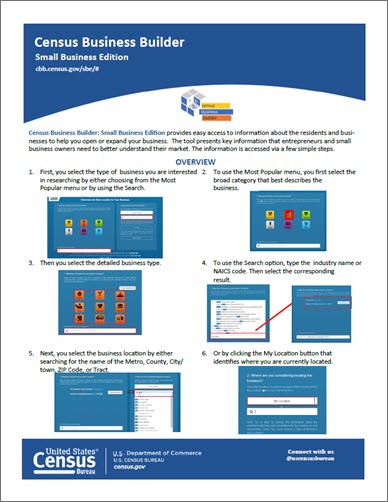

Simple steps to access the information available in the Census Business Builder tool.
Tips and Tricks
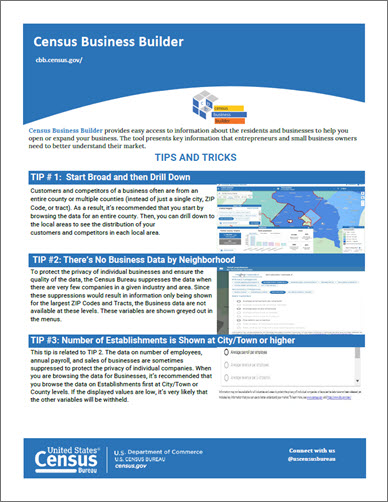
Learn 7 different tips and tricks to learn how to use Census Business Builder.
Accessing the Report Instructions
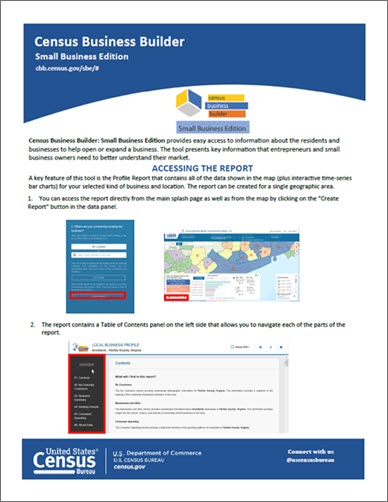
A key feature of CBB are the Reports that contain the data shown in the map (plus interactive bar charts). A single Profile Report includes Summary and Detailed versions of the report for the user's region as a whole or for individual city or county parts of the region. This flyer provides instructions on navigating and manipulating these reports.
Data Upload Feature Instructions
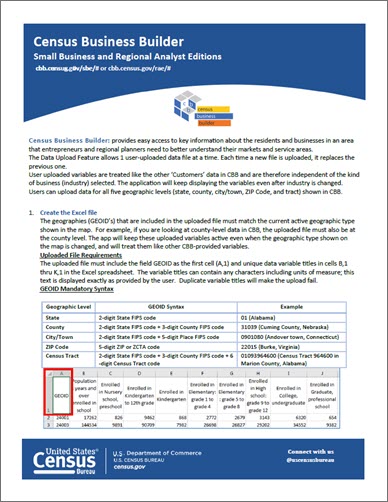
These instructions are for both the Small Business Edition and the Regional Analyst Edition of CBB.
The Data Upload Feature allows 1 user‐uploaded data file at a time. Each time a new file is uploaded, it replaces the previous one.
Users can upload data for all five geographic levels (state, county, city/town, ZIP Code, and tract) shown in CBB.
Download a sample file of dummy data for every county in Maryland.

Filtering Your Results Instructions
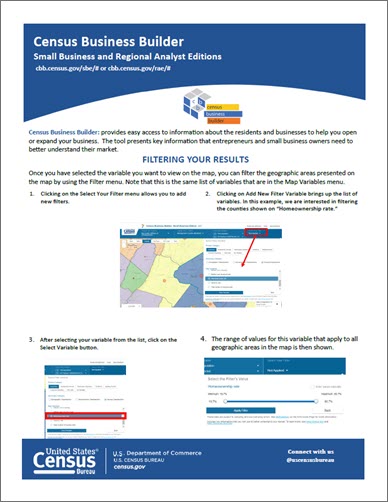
CBB allows the user to filter the geographic areas shown on the map to only show those that meet the users criteria based on up to 3 filter variables and values. This flyer provides a how-to guide on using the filter feature.
Map Classes and Color Palette
CBB allows the user to change the map classes and color palette displayed on the map using a Map Customize feature in the Map Legend. The map classes include an Equal Intervals method and a Quantiles method. The color palette includes 1-color (coral), 2-color (green/blue), 3-color (yellow/green/blue), and unique color. This flyer provides step-by-step instructions on how to navigate these features on the map.
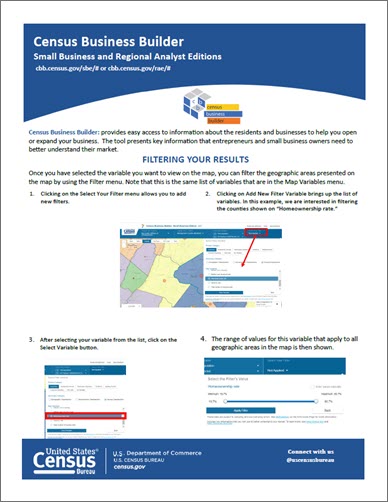
CBB allows the user to filter the geographic areas shown on the map to only show those that meet the users criteria based on up to 3 filter variables and values. This flyer provides a how-to guide on using the filter feature.
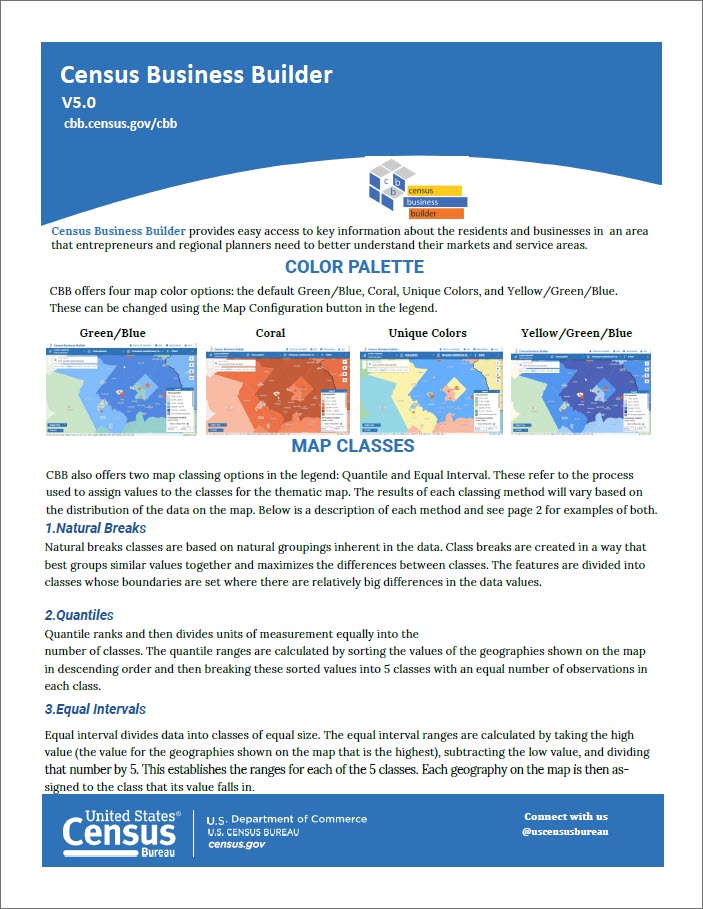
CBB offers four map color options: the default Green/Blue, Coral, Unique Colors, and Yellow/Green/Blue. These can be changed using the Map Configuration button in the legend.
Navigating the Map Instructions
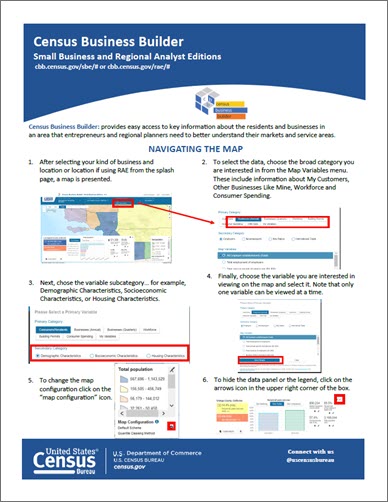
CBB allows the user to dynamically change the kind of business, geographic area, map variable, and filter variable right on the map. The user can also change the level of geography shown on the map and perform other map manipulations. This flyer provides step-by-step instructions on how to navigate these features on the map.
Reference Layer Instructions
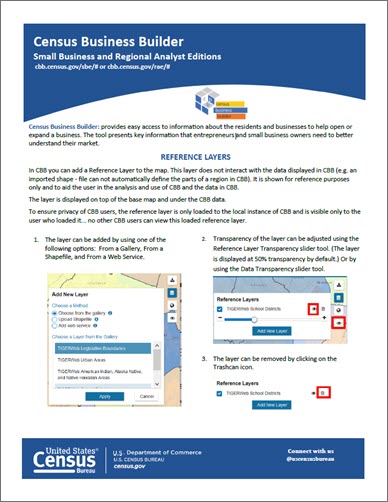
CBB allows the user to view 1 reference layer on top of the data on the map at a time using the Reference Layers feature. Each time a new layer is chosen, it replaces the previous one. Users can choose the layer from a pre-defined Gallery or by uploading their own ShapeFile or Map Service. This flyer provides step-by-step instructions on how to navigate these features on the map.
Small Business Edition: Tips and Tricks Instructions
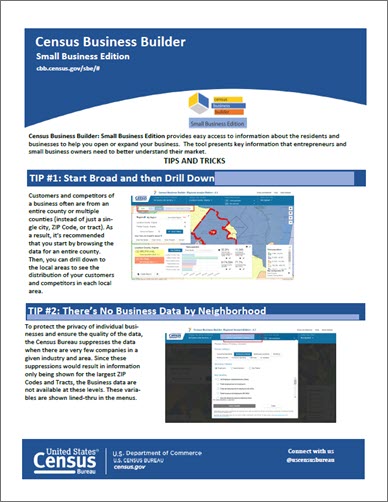
CBB allows users to find, access, and use detailed data for their kind of business, area, and region. This flyer provides quick tips on how best to use the features of CBB.
Dashboard Charts
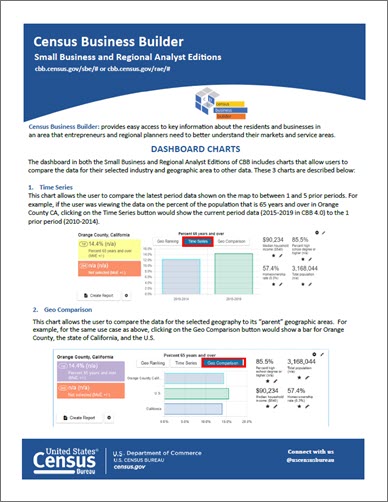
The dashboard in CBB includes charts that allow users to compare the data for their selected industry and geographic area to other data.