
Filter Geographies, Create Custom Regions and Get the Data You Need
Business owners, emergency teams and community planners rely on U.S. Census Bureau data to prepare for, respond to, and recover from disasters.
The Census Business Builder (CBB) tool provides such data for businesses and governments to grow their business and analyze the impact of emergencies on supply chains.
“The ability to customize and create your own geographic boundaries specific to your business needs is extremely innovative."
— Melissa Kopajtic, branch chief for business statistics at the Census Bureau
But two lesser-known features of CBB may prove to be even more valuable: easy ways to customize regions and filter geographies down to the county or census tract level.
How to Navigate Geography Features
Custom Regions
Users can generate a comprehensive, printable report, create a shareable custom URL or save their custom regions for future reference and analysis. In fact, CBB offers multiple options for evaluating a region.
One is to focus on a region that matches a specific geography like a single county, metropolitan area or state.
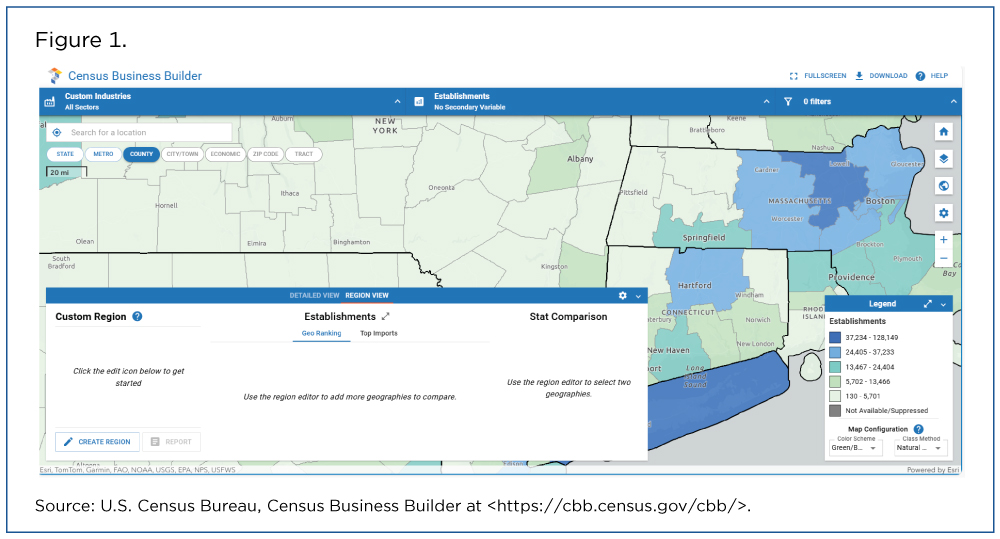
The other is to create a custom region that includes multiple geographies by selecting the ‘Region View’ tab from the dashboard and the ‘Create Region’ button in the bottom left corner (Figure 1).
“The ability to customize and create your own geographic boundaries specific to your business needs is extremely innovative," says Melissa Kopajtic, branch chief for business statistics at the Census Bureau. "This capability enhances the utility of our data by enabling tailored analysis beyond traditional geographic boundaries.”
Now, the Fun Part
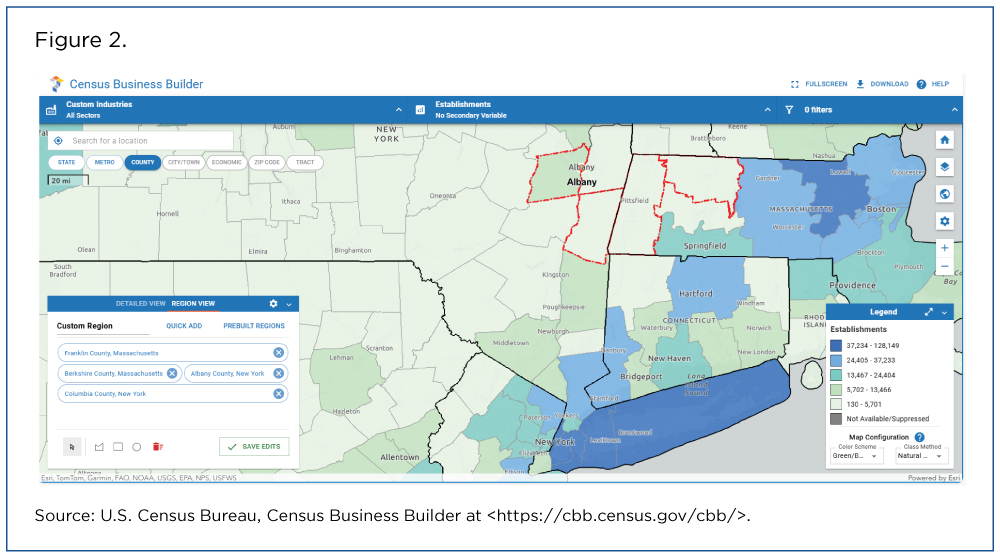
Click any geographic area on the map and it will automatically load into the dashboard’s region window.
You can add areas individually or choose a shape (circle, square or polygon) to select the portion of the map containing your desired regions (Figure 2).
You can also give your custom region a name (NY-MA Northeastern in this example). ‘Save Edits’ to create your custom region.
The new custom region is outlined in red and each of the geographic areas in the region are listed at the ‘Custom Region’ window (Figure 3).
A Geo Ranking chart compares the geographic areas in the custom region for any primary variable you choose (ex., Establishments).
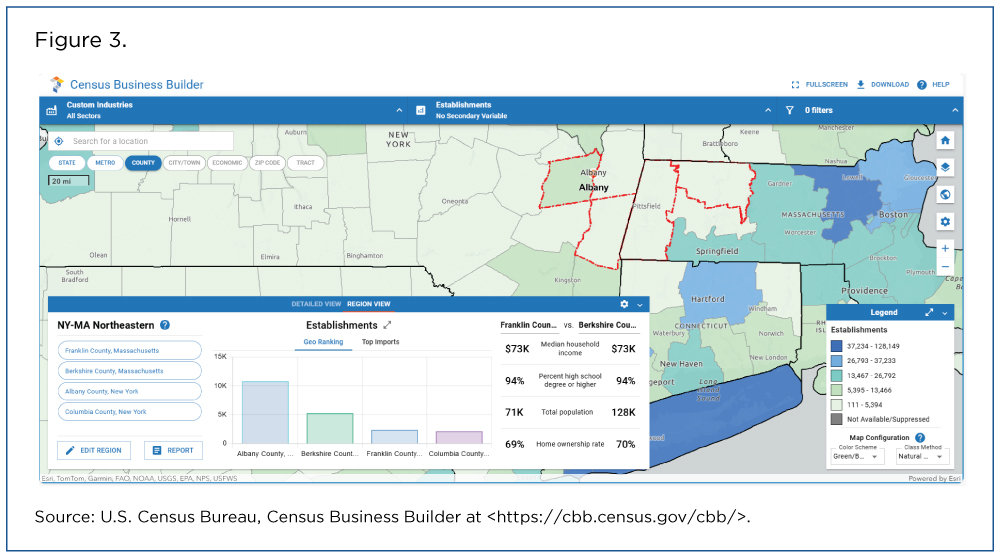
The right side of the dashboard allows you to compare geographies by up to four variables with a simple click.
We compared New York’s Columbia and Albany counties by the following variables: median household income, share of population with a high school degree or higher, all employer establishments and home ownership rate (Figure 3).
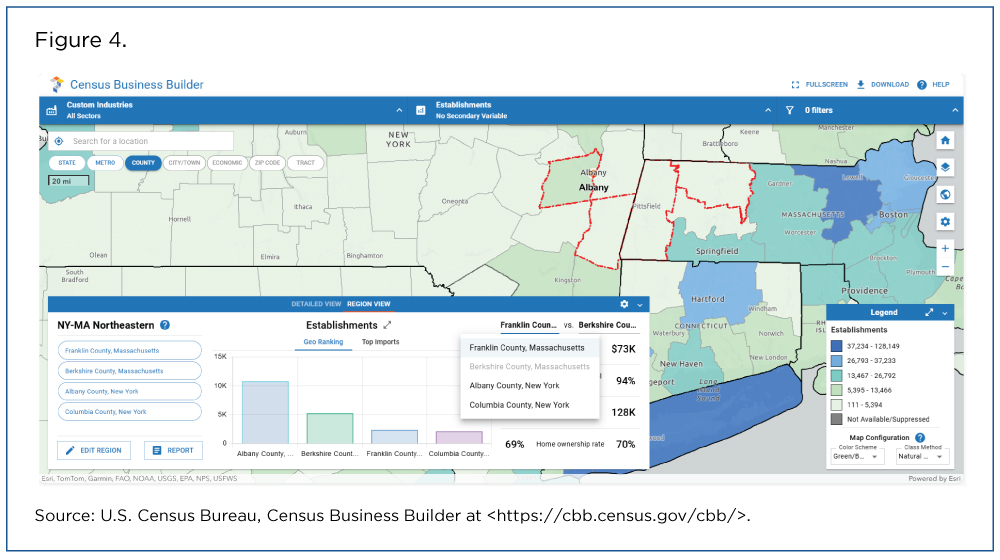
A drop-down menu on the right lets you select a different geography in the custom region (Figure 4).
Geographic Filters
You can use filters to set your own geographic parameters, and the map will display data only for the areas you choose.
You can assign up to three filters that will either highlight or hide the counties not matching your criteria.
In Figure 5, we used a map of Texas counties and selected the ‘Retail Trade’ sector in the top left corner.
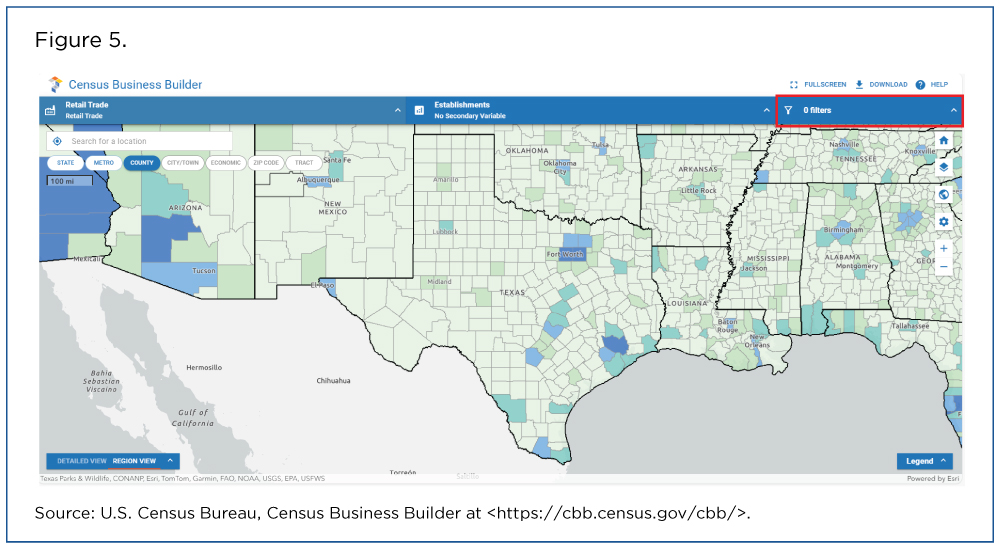
Let’s say you want to identify counties in Texas with the highest net job creation for Retail Trade. Start by selecting the ‘filters’ menu in the top right and click on the ‘+ Add Filter’ option.
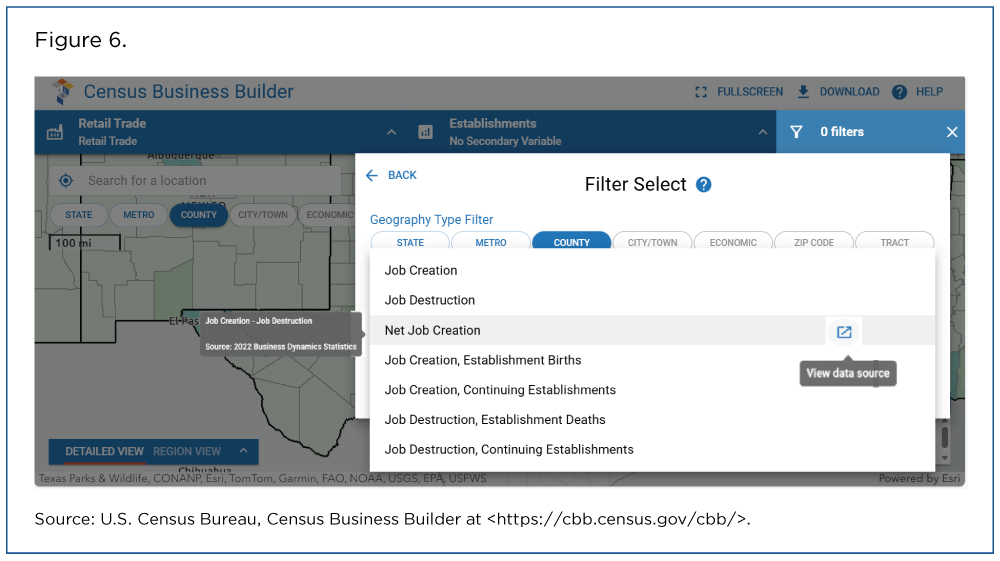
Next, locate and select the appropriate filter and specify your desired range. For example, you can select ‘Jobs’ from the Primary Categories menu, then ‘Net Job Creation’ from the Secondary Categories menu.
As an added feature, if you hover over any of the variables, a tooltip will display the source and year of the data item, as well as a direct link back to the original program area. This was a recent application enhancement that users find helpful for tracing data.
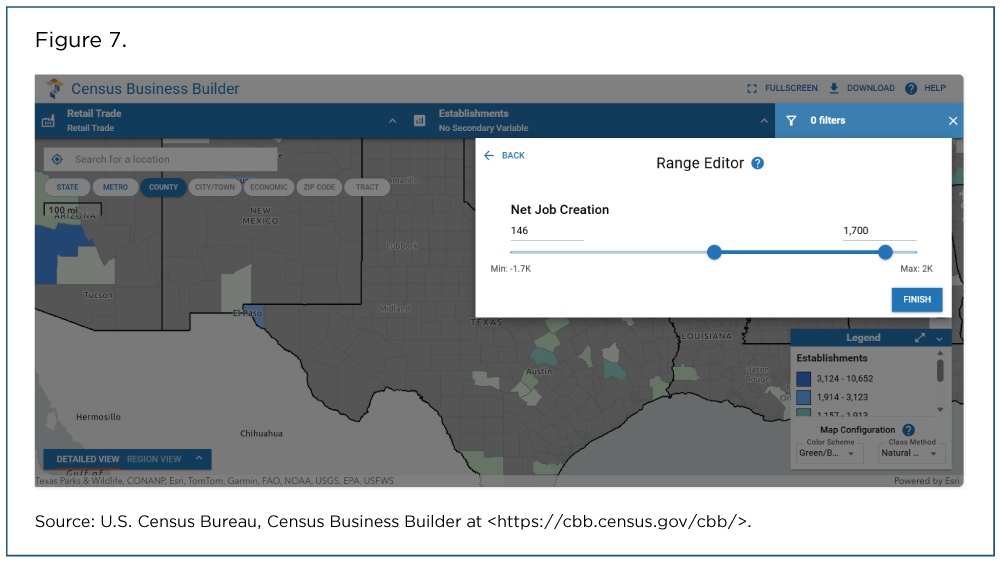
From here, simply adjust the minimum and maximum values for this variable, and the map changes accordingly (Figure 7).
Related Statistics
Subscribe
Our email newsletter is sent out on the day we publish a story. Get an alert directly in your inbox to read, share and blog about our newest stories.
Contact our Public Information Office for media inquiries or interviews.
-
Business and EconomyHow to Measure Disasters’ Impact on Supply ChainsAugust 08, 2024Rhode Island floods earlier this year serve as a case study of how Census Business Builder can show the impact of disasters on people and businesses.
-
Emergency PreparednessPreparing for the 2025 Hurricane SeasonJune 05, 2025Hurricane season began June 1 and we highlight Census Bureau tools available to help communities prepare for, respond to and recover from natural disasters.
-
HousingHow the Real Estate Market Relies on Census DataFebruary 01, 2024Census Bureau statistics are free and help realtors create their own tools to buy and sell properties.
-
Emergency PreparednessEarthquake Risk May Hit Closer to Home Than You ThinkOctober 14, 2026The 140th anniversary of the Charleston earthquake reminds us of the risks to people, housing and economies in places not typically associated with earthquakes.
-
Emergency PreparednessTornado Activity Shifts East — Heightening Risks in the SouthOctober 07, 2026Census data can help vulnerable communities that have a concentration of mobile homes cope with more frequent tornado activity over a longer season.
-
Families and Living ArrangementsU.S. Parents Gave $26.6 Billion to Their Adult Children in 2024September 30, 2026About 2.6 million parents provided financial support to 3.7 million children age 21 and over who did not live at home.
-
Business and EconomyAmerican Manufacturing: A History in Census DataSeptember 28, 2026On the 15th anniversary of Manufacturing Day, we celebrate the sector’s contribution to the U.S. economy.